The Best Practice for Structuring Groups and Data Sources in Bubble.io

This article explains that pattern step-by-step.
Understanding How Data Flows in Bubble
Every Bubble element—whether it’s a Group, Repeating Group, Popup, or Reusable Element—has two important properties:
- Data Type → the type of thing the element expects (User, Product, Order, etc.)
- Data Source → where that data comes from (e.g., Search for Orders, Current User, or Parent group's Product)
This system gives Bubble a lot of power, but it can also create clutter when used without a strategy.
The Common Problem: Too Many Data Bindings
Imagine you're building a User Profile page:
- Page → Data Type: User
- Inside the page: Group User Detail → Data Type: User, Group User Bank Account → Data Type: Bank Account
Each child group often has its own data type and data source, typically set to something like:
- Parent group’s User
- Parent group’s Bank Account
This works… until something changes.
For example, if the parent group's data type changes from User to Customer, or if your data now comes from an external API, you suddenly need to:
- Update every child group manually
- Reconfigure multiple data sources
- Hunt down broken expressions
- Debug empty data showing up for no obvious reason
This creates:
- More clicks
- More risk
- More confusion
There’s a better way.
The Better Practice: Centralize Data Context at the Parent Level
The rule is simple:
Define the data type and data source only once, at the highest relevant parent group. Let all child groups inherit the data context.
This means:
- Only the parent group has a Data Type.
- Only the parent group has a Data Source.
- Child groups do not define their own Data Type or Data Source.
- Children simply reference their parent’s data when needed.
Benefits:
- Cleaner structure
- Fewer places to update when things change
- Faster workflows
- Less risk of breaking data bindings
This pattern keeps your UI and workflows aligned around one central source of truth.
Step-by-Step Example: Product List Page
Let’s walk through a real example.
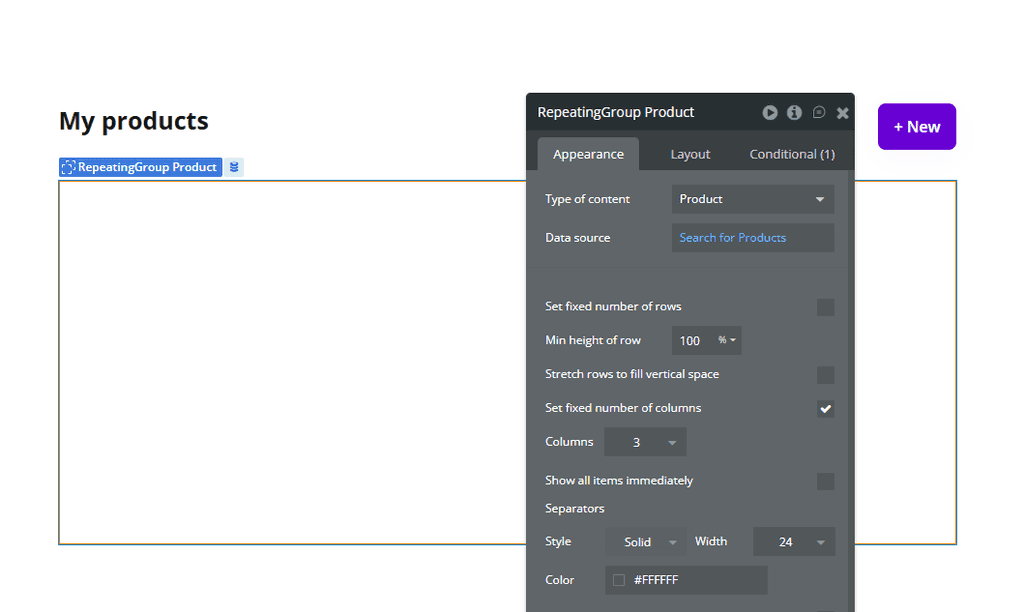
Step 1: Create the Repeating Group
Add a Repeating Group (RG) to your page.
- Type of Content → Product
- Data Source → Search for Products
Each RG cell now automatically holds a single current cell's Product.
Step 2: Add a Wrapper Group Inside the Repeating Group
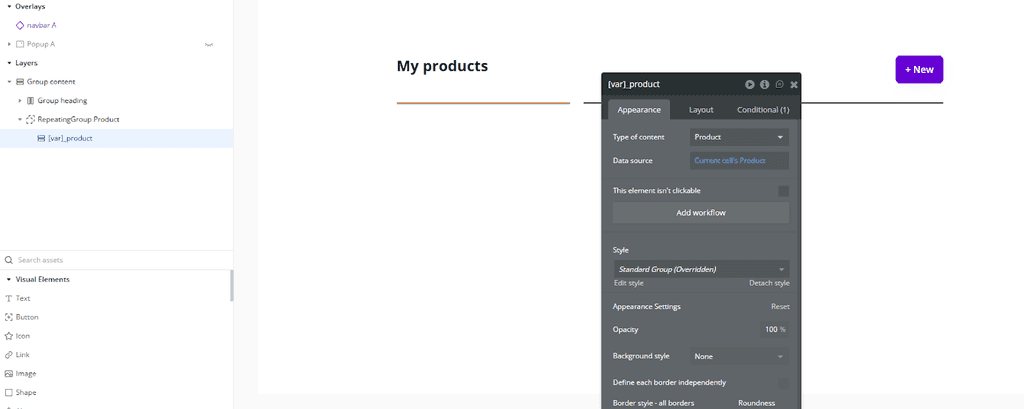
Inside the cell, add a Group named:
[var]_product
(Set “[var]” to your naming style, e.g., g_product.)
- Data Type → Product
- Data Source → Current cell’s Product
- This is now your data anchor for the entire cell.
Step 3: Add Elements Inside the Group
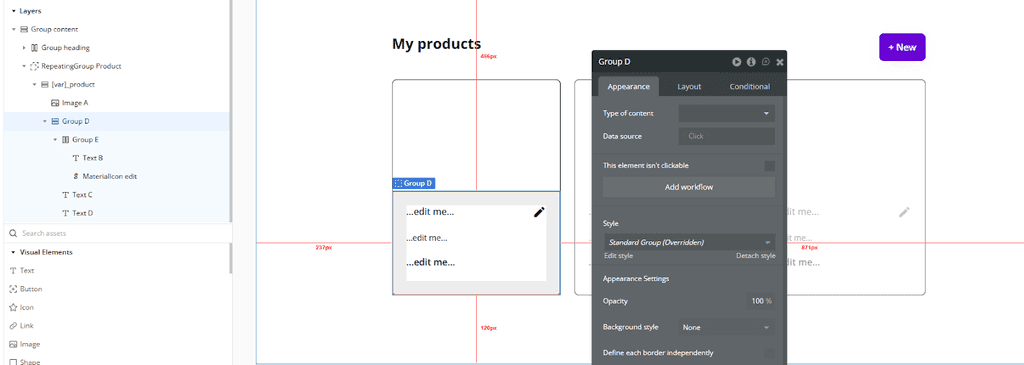
Inside [var]_product, add:
- Image (Product Image)
- Text fields (Product Name, Price)
- Icons or buttons (Edit, Delete)
Do NOT set any data type or data source on these child groups or elements.They inherit data from [var]_product.
Step 4: Bind Content Using the Parent Group
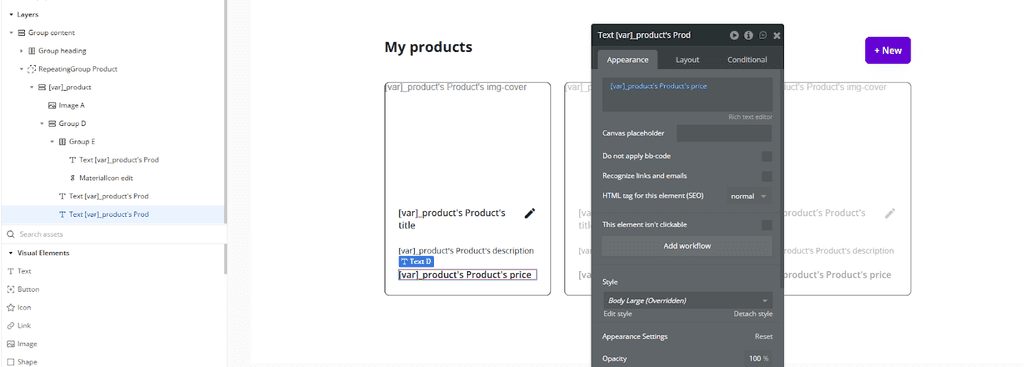
For example:
- Image → [var]_product's Product Image
- Text → [var]_product's Product Name
- Text → [var]_product's Product Price:formatted
Because all data comes from the parent wrapper group, nothing else needs configuration.
Step 5: Workflow Example
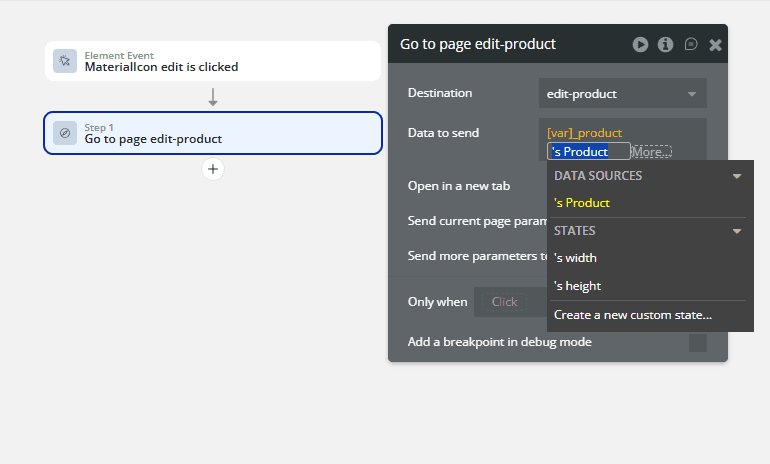
In a workflow—for example, clicking an Edit icon—use:
[var]_product's Product as the reference.
You never need:
- Current cell’s Product
- Parent group's Product
- Additional data sources
It’s all connected through your wrapper group.
Conclusion
By centralizing your data type and data source at the parent level—especially with a wrapper like [var]_product—you avoid unnecessary duplication and future-proof your app structure.
With this method:
- You rarely need Data Types on child groups
- You avoid micromanaging Data Sources
- Updating your data structure becomes faster and safer
- Debugging becomes dramatically easier
And best of all:If you ever need to change the data type, you only change it in one place: the parent wrapper group.This simple discipline will save you hours of headaches and keep your Bubble app clean, predictable, and scalable.
Related posts
 Guides
Top 3 Bubble Agency in Indonesia in 2026
 Business
Why Non-Technical Founders Are Choosing Bubble to Build Their SaaS
 Bubble Development